
User Groups
Overview
The User Grouping feature in HYAS Protect helps organizations manage security and content filtering more efficiently by allowing Admins to define and manage collections of users — called User Groups — based on usernames reported by the HYAS Protect Agent. These groups simplify the process of applying targeted protection and content filtering policies across subsets of users, making it easier to tailor security configurations to different roles, teams, or risk levels. The setup is fast and intuitive, with group creation and assignment seamlessly integrated into the existing HYAS Protect policy workflow.
Getting Started with User Groups
Requirements
Windows or mac HYAS Protect Agent installation: User Names are acquired via the HYAS Protect Agent. This means in order to configure User Groups, you must first deploy the HYAS Protect Agent on one or more of your machines.

Ensure you’re running the latest version of the HYAS Protect Agent.

Only user groups based on usernames collected by the HYAS Protect Agent are supported. Usernames sourced from Microsoft Defender for Endpoint (MDE) are not compatible with user groups, and any associated policies will not be enforced.Group Creation and Policy Assignment
Configuring User Groups in HYAS Protect is simple and efficient. To begin, click the User Groups icon in the left-hand navigation. From there, you can create groups and assign users and a policy in just three steps.

Step 1: Creating a Group
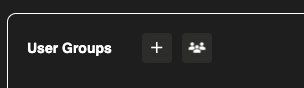
Once in the User Groups UI, click on the “+” icon at the top left of the page.

Now, from the Assigned Users panel you’ll be prompted to name your rule.
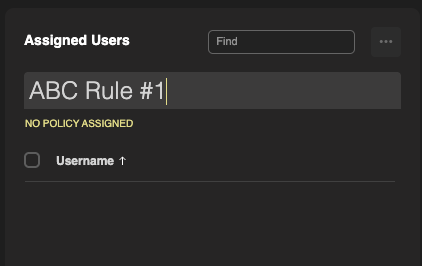
Clicking anywhere outside the Assigned User Panel automatically saves the new User Group
Step 2: Assigning Users to Groups
Now that we’ve created a User Group, we need to assign users to it.
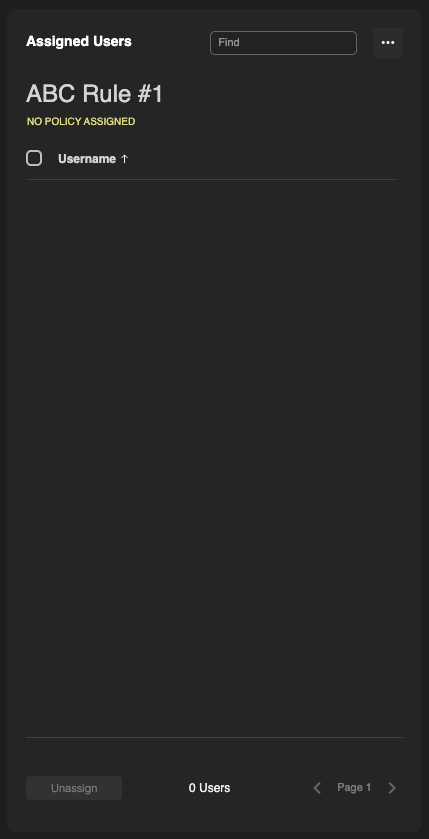
Navigate to the Available Users panel on the right side of the screen.
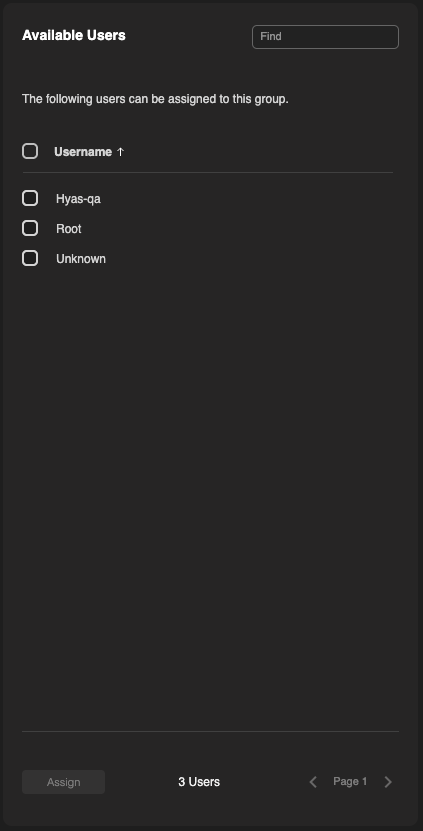
Select the users you wish to assign to the group and then select Assign at the bottom of the page.
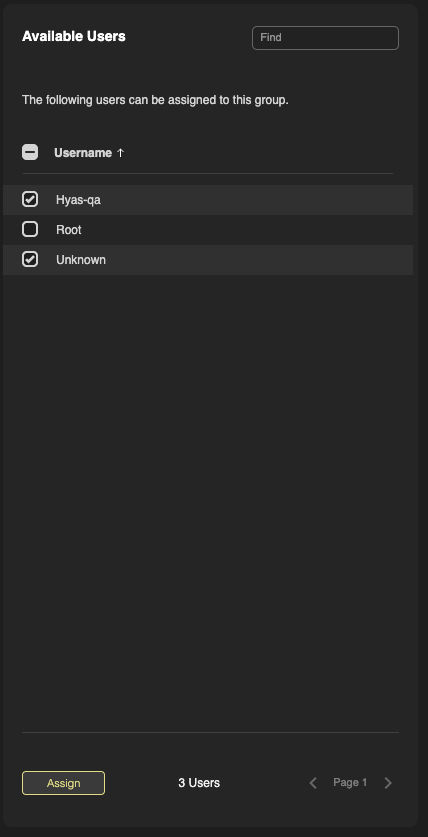
Two users are now assigned to this group.
Each user can belong to only ONE Custom User Group in HYAS Protect. The Available Users panel only displays users who are not currently assigned to any other group.
Step 3: Assigning a Policy to a User Group
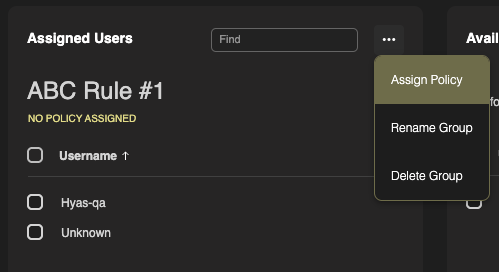
By default, if no other policy is assigned to a User Group, they are subject to the Default Policy. However, if you wish to assign a specific policy to the group, start by clicking on the ellipsis in the top right of the Assigned Users panel.
Next, select Assign Policy
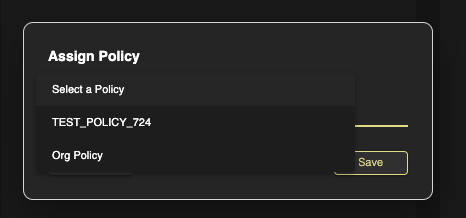
From the Assign Policy popup, select the desired policy from the picklist.
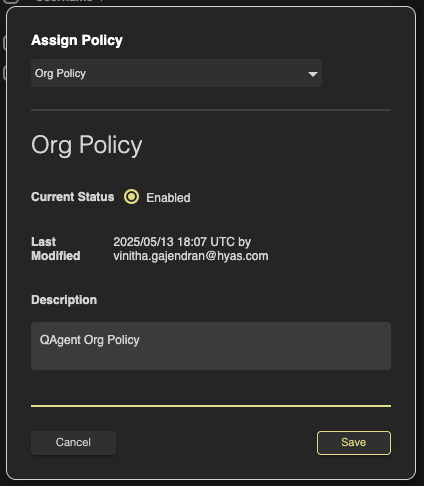
Click save and you’re all done! You’ve created a new User Group, Assigned Users and a Policy.
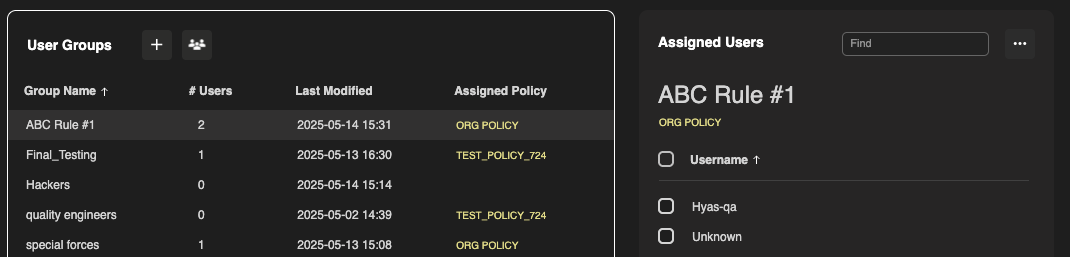
Note our ABC Rule#1 policy now shows the ORG POLICY as the assigned policy.
Group Management Tools
Viewing All Users
To view all users, simply click on the All Users icon next to the create groups function:
Renaming a Group
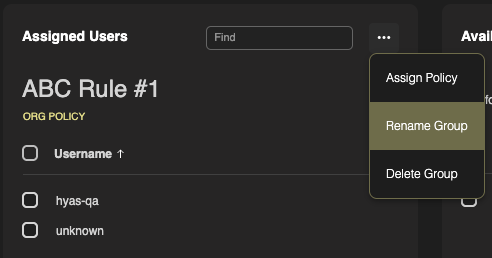
Click on the ellipsis in the Assigned Users Panel and select Rename Group
Deleting a Group
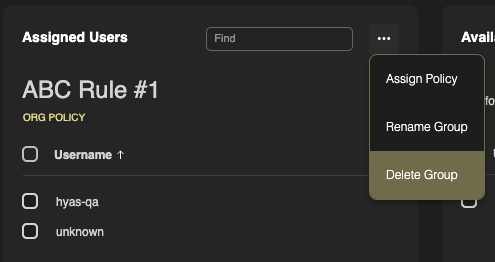
Click on the ellipsis in the Assigned Users Panel and select Delete Group
Unassign (Remove) Users from a Group
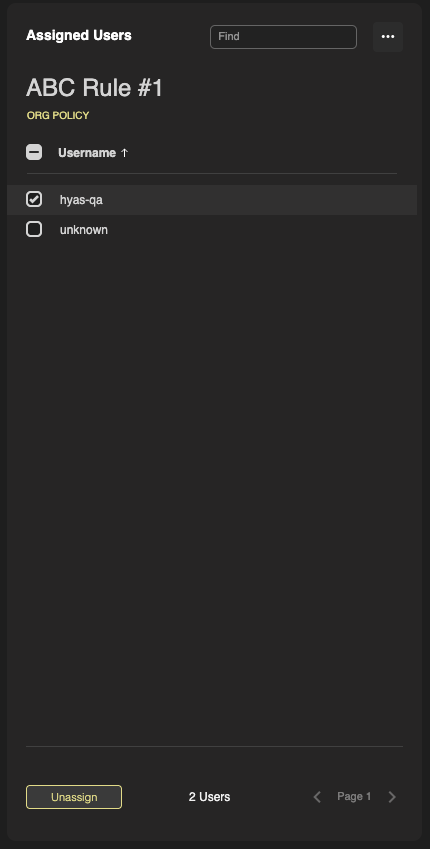
From the Assigned Users panel, select the users you wish to unassign. Then select Unassign at the bottom of the screen.
FAQs
Q: How long does it take for a policy to be applied to a group once it’s assigned.
A: Policies are applied very quickly and you should notice their application within a few minutes.
Q: I’ve applied a policy and blockeddomain.com is still accessible. Whats going on?
A: Often times, this is caused by caching. You may need to clear your browser’s cache to resolve this issue.
Q: Why are there users missing from the Available Users panel?
A: If a user is missing from the Available Users panel, it is because a) they do not have the HYAS Protect Agent installed or b) they have been assigned to another group.
Q: Can I utilize User Groups with my Microsoft Defender for Endpoint or SentinelOne Integrations?
A: Unfortunately not. Due to limitations on the vendor site of the integration, neither allow for policy application on a user or group specific layer. User Groups can only be applied via HYAS Protect Agents at this time.